
Note: Please read Programmer's Guide first
Here you will see a demonstration of the features of the product.
1. Run Server Test Stand.
The Server Test Stand simulates an arbitrary code that creates and calls Team Remote Debugger Object.
You may find the source code of the Server Test Stand in your installation folder. (test_stand.vbp)
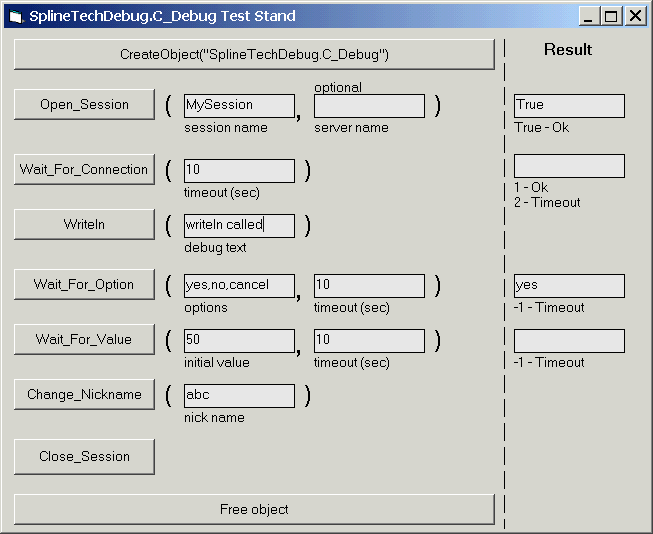
Here you can see all the methods of Team Remote Debugger Object (SplineTechDebug.C_Debug) and their return values.
1. Click first button CreateObject(“SplineTechDebug.C_Debug”) – this creates the SplineTechDebug.C_Debug
Now Run Team Remote Debugger ® 2001 Client:
The Team Remote Debugger 2001 Client is an application you are going to use everyday to debug you remote code using our product to view messages and dialogs from your remote code units and to collaborate with your team on debugging issues.
This User's guide explains completely the interface of the Team Remote Debugger 2001 Client as well as provides a good explanation on how to use the server side Team Remote Debugger object.

This is the main window of Team Remote Debugger ® 2001 Client.
To be able to trace your remote object you should connect to the server, find a debug session and open it, precisely like this:
Step-By-Step:

The Caption has been changed, indicating that the Team Remote Debugger
Client is connected to the server you entered.
Your code must create debug session under which all messages and dialogs will flow. (read more in Programmer's guide about debug sessions)
The list of sessions on the Client is empty because no session is created.
To create a new session (or to get the existing one) on Server Test Stand –Cick Open_Session button with parameters that are already entered
As we said, the client "felt" that the session is opened on the server it is connected to, and displayed the session name in a list of sessions.
You will see on the Client
 that
that
session appeared automatically in the combo box 3.
4. To open a selected session click Open
button
A session window appeared on the screen
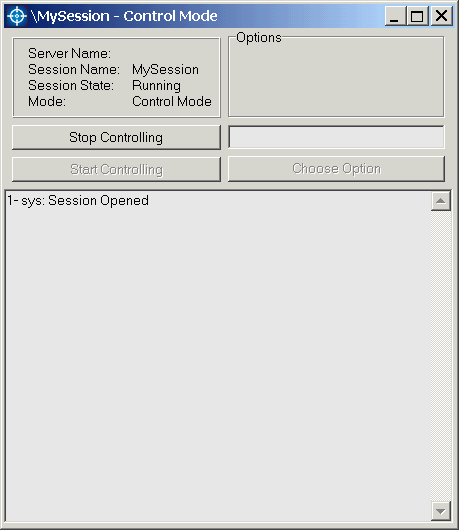
Session Window appeared.
Let’s look closer on the session window:
Title shows the server name\session name.
In our case now server name is empty, session name is "MySession"
"\MySession – Control Mode" is a title of the window.
Control Mode means that it is you who will answer all dialogs coming from the source of the session (from the code that opened the session).
If you have reviewed the presentation, the "Case #5. Convenient Collaborative Team Debugging" explains generally that anybody can connect to the same server, and can open the same (your) session.
They will only view the messages, they will not be able to answer dialogs and therefore change the behavior of your code as long as you are in Control Mode. Others are in View Mode.
These 2 buttons 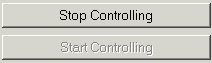 are responsible for changing the Control Mode to View mode. We will discuss
all of that later in this Guide.
are responsible for changing the Control Mode to View mode. We will discuss
all of that later in this Guide.
First let’s learn the primary functionality of the Team Remote Debugger ®
2001 Client.
1. Activate the Server Test Stand.
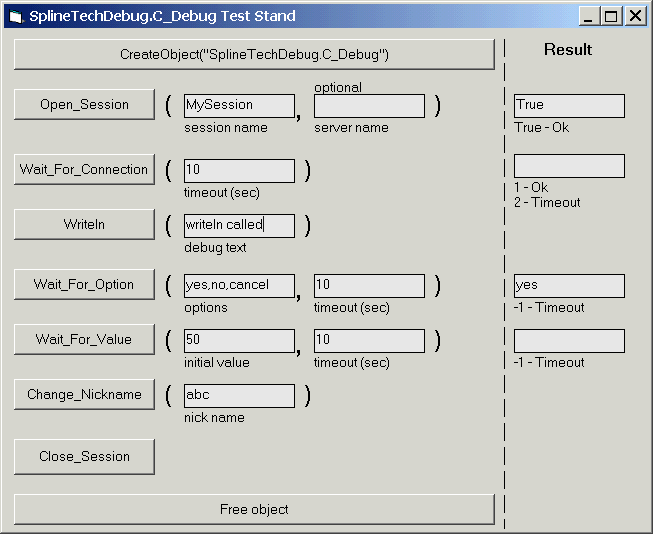
2. Click Writeln Button with the parameters currently entered to invoke Writeln Method of SplinetechDebug.C_Debug object. That method simply passes the messages from inside your code to the session window of the Team Remote Debugger Client.
So, On the debug session window you will see
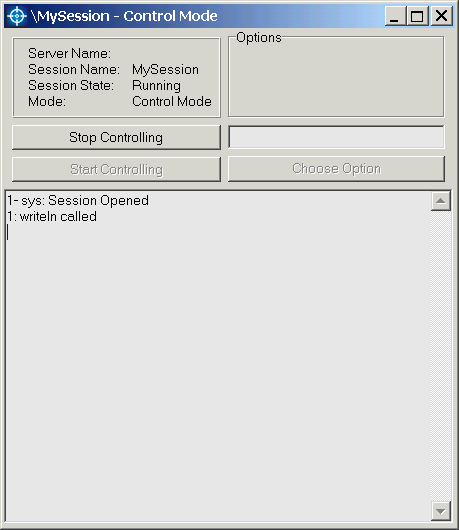
Since it is possible that 2 pieces of code opened the same Debug session all messages are prefixed by the index of the opener of this session.
Technically we count the number of instances of SplineTechDebug.C_Debug objects connected to a debug session.
So technically we should say:
"Since it is possible that 2 SplineTechDebug.C_Debug was invoked to open the same debug session and therefore are connected to the same debug session all messages are prefixed according to which SplineTechDebug.C_Debug object was first, second, third, ... who opened the session."
This feature is useful for example when you have ASP page that uses the MTS component. You should create C_Debug once in ASP and another time in MTS, but they may actually be connected to the same debug session so all your ASP and MTS messages and dialogs will appear in only one window. Otherwise, if the name of the session ("MySession") is different in the two code units, you will end up with 2 session windows. Sometimes though it is preferable to have 2 windows.
If your MTS component resides on different than ASP server you can open the session on the one server (ex. ASP server) by using Machine_Name parameter of Open_Session method of C_Debug object. In this case if you will use the same session name for both sessions (although opened from 2 different machines) for the Client it will be totally transparent that the the you have 2 code units residing on 2 separate machines.
The same applies if you have 100 different code units on 100 different machines, you may tunnel all your sessions via only one server.
And your team can do the same, independently how many servers are shared and how many tunneling servers are shared.
Like it was in Presentation, If there will be
second component which opened this session and called writeln
It will look like
2: writeln called.
You may change the text of writeln parameter to print any string you want:
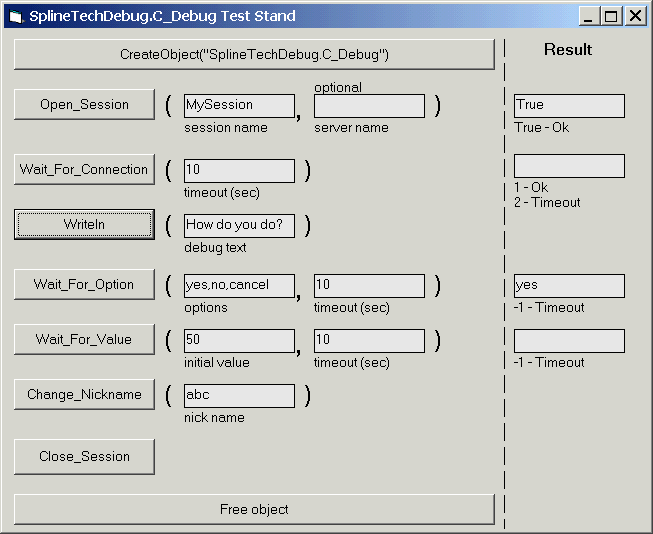
I printed "How do you do?"
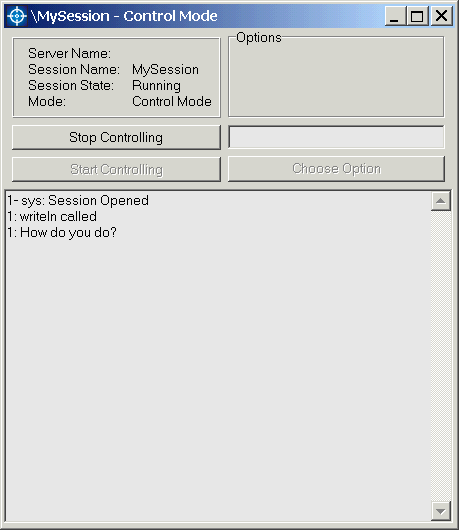
And so on. I am sure you got the idea.
Now let’s recall what we have done:
How to automatically block the execution (do nothing) of the component until we actually open the session?
How to eliminate “We did nothing until…” because component will not automatically “do nothing until” by itself, right? It will run trough the code and disappear, and we will not be able to read the messages and dialogs
The answer is Wait_For_Connection method of SplineTechDebug.C_Debug component
Let’s see how the Wait_For_Connection button works:
Close the session window:
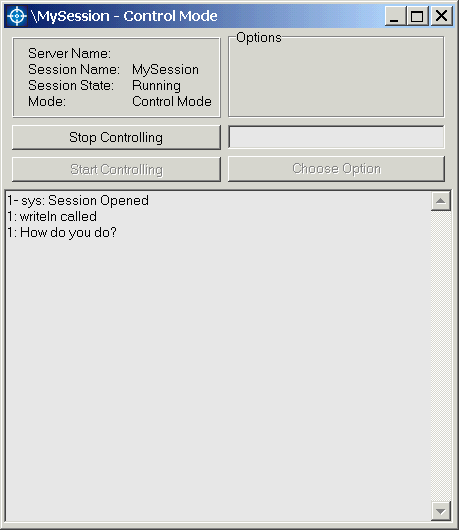
You will see

Click Wait_For_Connection button
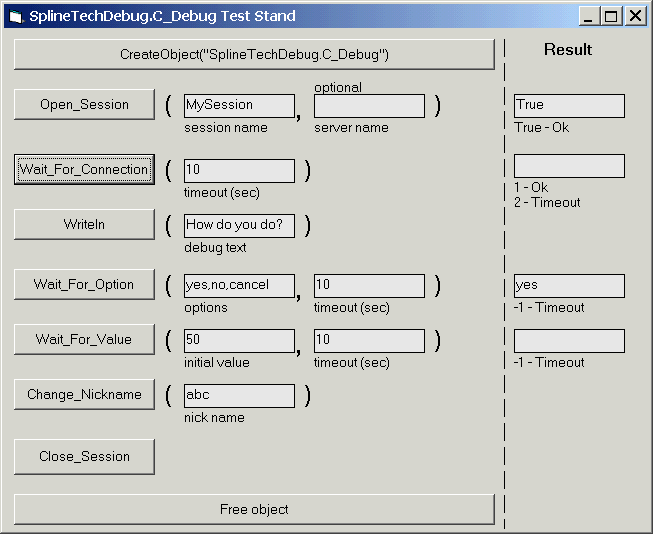
Wait_for_connection method of C_Debug returns only after Client opens the session or timeout elapses.
Probably while you are reading this, timeout has elapsed and return value is 2.
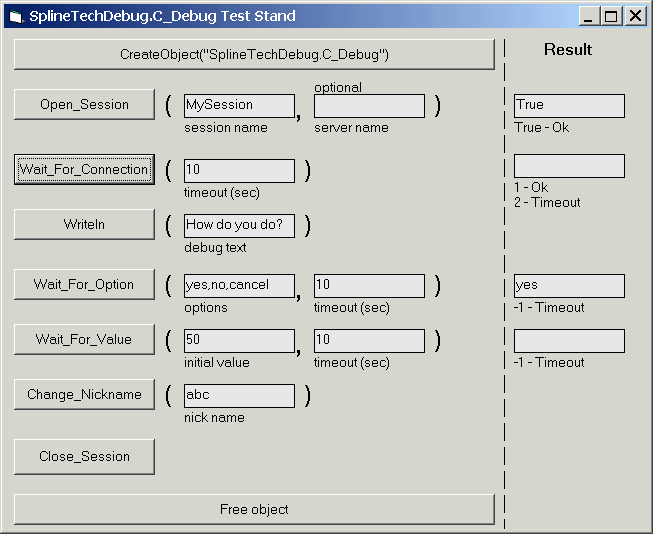
Now click it again and go to Team Remote Debugger ®
2001 Client and click Open
Your return value is 1, which means the Client Opens the Session within 10 seconds of timeout period.
You can read your return value inside your remote code and act
accordingly. You may put the timeout period as long as you wish, but there
is no "infinit" number to enter.
The most difficult part is over.
Now the last buttons
Click Wait_For_Option method button
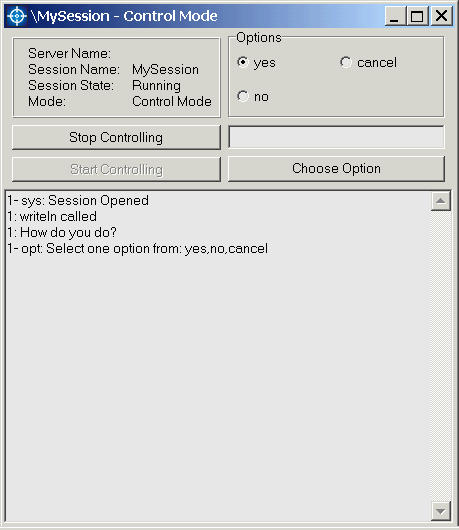
1- opt: Select one option from: yes,no,cancel
is an automatic message that system generates to notify that selection is required by component number 1
Click Choose Option Button
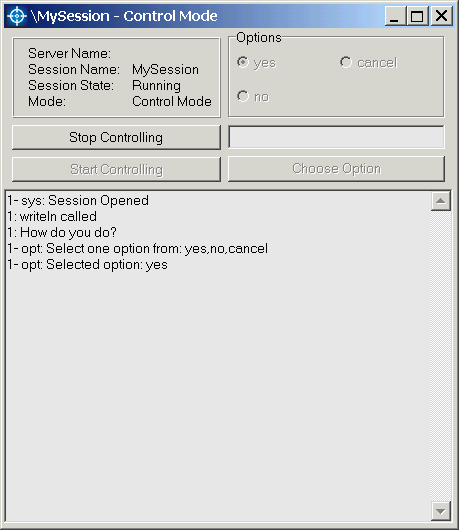
Now you can read the screen yourself
1 – opt: Selected option: yes
shows the selected option
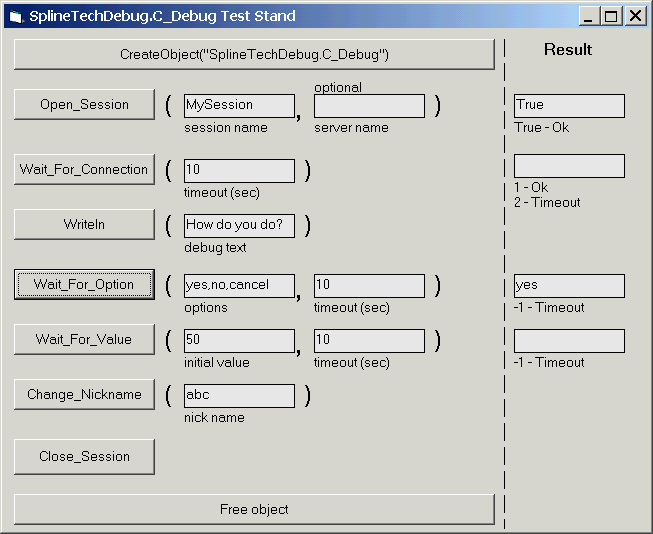
Return value of Wait_For_Option method is yes – which is the option selected.
If you did not click Choose Option button within timeout period (10sec in this case) you will receive ‘–1’ result
and
1- opt: Timeout
message on the Client.
Play with option paramter by yourself. Enter "Ok, Cancel" or
"ok and cacel" or "an apple a day keeps the doctor
away". Have fun!
Wait_For_Value is similar to the Wait_For_Option but you can enter whatever value you want and it will be passed back as a return value of Wait_For_Value method.
The Initial Value parameter passes the
initial value that is displayed inside the edit box with a black frame.
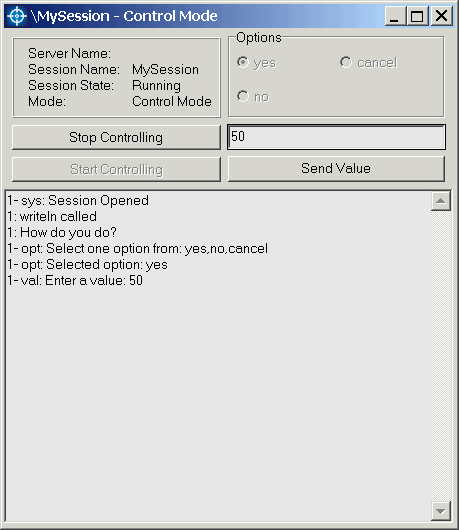
Click Send Value
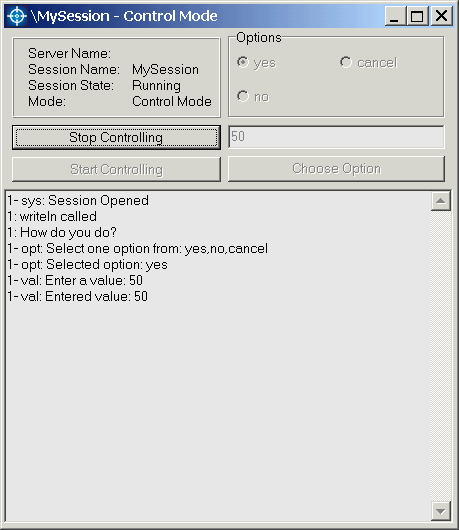
You will see
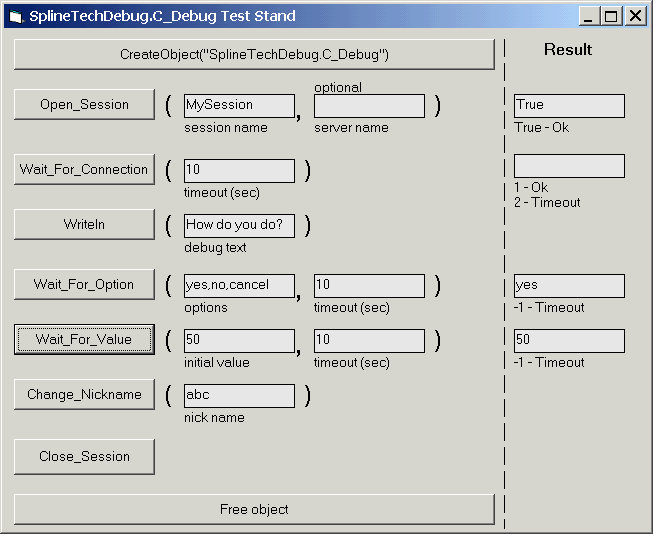
Return value is 50
System messages
1- val: Enter a value: 50
1- val: Entered value: 50
You could enter any value whether numeric or string, the value itself is a
variant.
Change_Nickname simply click it and click Writeln – you will see.
Instead of 1: you see abc:
The nickname for the component is changed.
As I promised you we will go back to
buttons and Control Mode, View Mode features.
As you remember there could be other programmers debugging on the same machine and we do not want them to interact with our debug session.
In the beginning, they will be able to View your session but they will
not be able to Choose Option and to Send Value as long as they are in
View Mode and you are in Control Mode. (The mode is indicated on the
title "\MySession - Control Mode")
By default, the first Client, which opens that session, is in control mode automatically (as we were in the previous scenario).
To give control to a viewer of your session you should click Stop Controlling
Button.
But you will not loose your control immediately you are still in Control Mode until another programmer (or you) clicks Start Controlling button.
That one who clicked Start Controlling
button becomes Controller of the debug process and is now in
Control Mode, while every other persion connected to the same session automatically become Viewers in
View Mode, and Stop Controlling button is disabled for them because they are not authorized to take control from
the Controller.
Let’s simulate it now.
Click Stop Controlling button. You will see:

You are still in Control Mode as we explained above, but you cannot click Stop Controlling any more, and you can click Start Controlling to become controller again
Now open another instance of Team Remote Debugger ® 2001 Client
Connect to local machine (empty server name field)
And Open “MySession” from there.
On your new instance of Client you will see
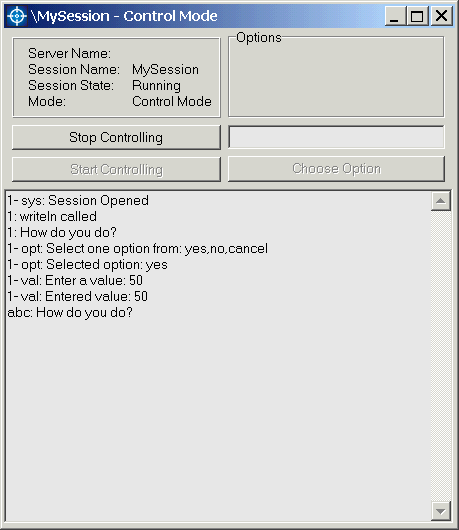
So that new instance and a person behind it is a Full Controller now.
Look back to your session screen
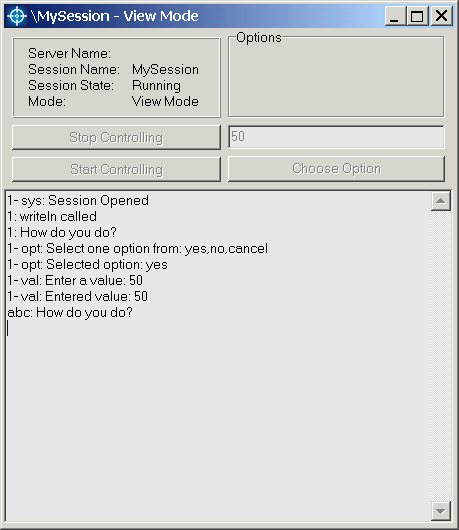
You are in View Mode and cannot take control back until Controller will “Stop Controlling”
itself. Click Stop Controlling on second instance and click Start Controlling on the first
You regained your power and cotrol.
Now on Server Test Stand click writeln, Wait_For_Option, and Wait_For_Value and you will see that messages go to both windows but the Control Mode window can choose options and send values
The Last thing left is Close_Session from the Server Test Stand.
Click it and you will close the session
You see, no more MySession in Debug sessions list
Only \MySession in windows list. (if you click show, you will focus that window that is selected)
And the same is on the second instance of the Client
Session is closed for the View Mode Client
Session is closed for Control Mode Client too.
Congratulations! You have done the entire training need to use the Team Remote Debugger 2001. You may review the Programmer's Guide and Presentation once again.
Thank you very much for considering our product
If you have any questions, please feel free to contact us:
support@remotedebugger.com
Sincerely,
The outstanding team of
Spline Technologies Corporation.