
How to debug with Team Remote Debugger ® 2001?
Note: Please review the
Presentation
and Programmers Q&A
section
The Concept
First, what you have:
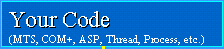 to debug on remote
machine
to debug on remote
machine  .
. where you want to see all messages and dialogs coming from your code.
 Client
installed on your local machine
and Team Remote Debugger ® 2001
Server on your remote machines
.
Client
installed on your local machine
and Team Remote Debugger ® 2001
Server on your remote machines
.
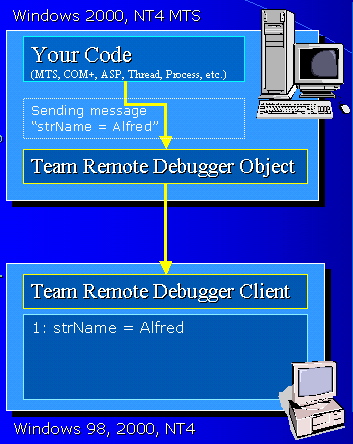
Second, what your code does:
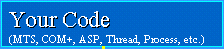 simply creates our COM component SlineTechDebug.C_Debug
Then 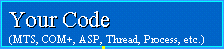 calls methods of our component to send messages and dialogs
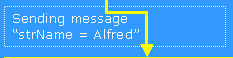 to
Team Remote Debugger ® 2001 Client on your local
machine where you actually
see these messages and dialogs.
to
Team Remote Debugger ® 2001 Client on your local
machine where you actually
see these messages and dialogs.
Teamwork and Sessions:
Your colleagues, at the same time, have their own code on the same or on different remote machines.
And they need to debug them in parallel with you.
Of course, you do not want to mess each other's work and to see messages and dialogs of others coming to your screen.
To solve this problem
 opens a separate debug session (with a name
of your choice) via our component .
opens a separate debug session (with a name
of your choice) via our component .
That debug session name appears on Team Remote
Debugger Client's window once you connected to
the remote server
where your component resides

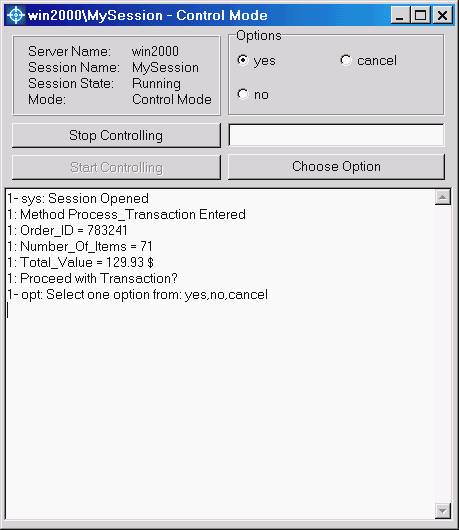
Pic. 1. As you see the "MySession"
is a Debug Session name that identifies a debug session opened by your code
on win2000 server
The "win2000\MySession" identifies an open window on your local
machine where all messages and dialogs are coming (Pic. 2.)
Obviously there could be multiple sessions on the same server and multiple
windows opened at the same time. And once you opened a debug session window
you may connect to another server and open another session on that server. That
all will work
Pic. 2. Debug Session Window of "MySession"
session on win2000 remote server
So on your Team Remote Debugger ® 2001 Client you will see all sessions existing on the server you connected to - these are sessions opened by different components debugged at the same time on that remote machine.
It does not matter how many team members are working on that server now, you will always see how many debug sessions exist on that server.
If the session exists on the server, you can open
it from your Team Remote Debugger 2001 Client whenever you need.
That is the entire concept
Thus a debug session is initiated by your code and is used to separate messages coming from different code units
Note: For more information about the user interface and general usage of the product consult User's Guide.
Step-by-step guide and methods reference of
SplineTechDebug.C_Debug object
To facilitate development on any language all parameters are
variants.
But in fact internally all parameters are strings except the timeout
parameter, which is integer
1. Create Component SplineTechDebug.C_Debug
Use any way to create an instance of SplineTechDebug.C_Debug
VB :
Set odeb=CreateObject("SplineTechDebug.C_Debug")
...
Delphi: odeb:=CreateOleObject("SplineTechDebug.C_Debug")
2. Open_Session(Session_name, Machine_name)
-The first thing your remote code should do is to open a debug session
with session_name on machine with machine_name
-Debug sessions allow simultaneous debugging of multiple
code units by you and your team.
-They also facilitate team collaboration on complex debugging issues.
-If session with that name exists it will connect your code to that
existing session. You will distinguish one code unit that opened the session
from another by seeing a prefixes 1: ... 2:... in the debug session
window of your client before each message and dialog (see Presentation
for more
information, or try User's
Guide supplied with retail version of the product)
-Machine_name is a string with name of machine where the session
will be physically opened.
-Set Machine_name="" to specify the remote machine with
your code on it or simply omit the
parameter.
-Set Machine_name to a name of another machine on a network If you
wish to tunnel all messages via that machine
3. Wait_For_Connection(timeout)
-This function is very important.
-It stops execution and waits until you actually
open the session from the Client.
-It returns when a session is
opened or timeout time elapsed
timeout - an integer number of seconds to wait.
Return values:
"-1"- Ok - client successfully connected,
"-2" - Timeout - client have not connected on time.
"-3" - Exception (when no client is connected to the
session is open)
Note: Imagine a small code of 5 lines which you want to debug.
You open session, you send messages, you close session. All happens within
50ms. Without this function you would have to catch those 50ms to open a
session from your client and not to miss a message. With this function
your code waits until you actually open the session.
Note: if you want to disable
debugging for a website without removing all of your debug
code you added in order to trace your code, you may simply 'comment' the
Open_Session call or set "wait_for_connection=0".
4. Writeln("your message")
This is how you send messages from your component to the client
You can writeln variable value like Writeln("x=" & x) 'VB or
Writeln('x=' + IntToStr(x)) //Delphi
5. Wait_For_Option(options,timeout)
- To send dialog with a list of radio buttons of your
choice.
- options - is a string with radio buttons like "yes,no,cancel" this will create
yes, no, cancel
radio buttons on client.
- Function returns when you selected
radio button on the client and clicked "Choose Option" button or when
timeout elapses.
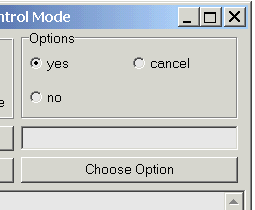
Pic.3. The
"yes","no","cancel" radio buttons appeared
on the session window. They simulate standard dialog buttons like Yes, No,
Cancel or Ok, Cancel or simple Ok. And also allow you to send any
arbitrary list of choices. When you click "Choose Option" the selected radio
button caption is transferred back to your remote code. Your code can do
whatever it wants with that information for example put it in If statement
and adjust it's behavior according to your run-time selection.
- options - string like "yes,no,cancel" or "ok cancel" that has options separated by comma or space.
- timeout - integer timeout in seconds. The execution will be blocked until the function returns. Function returns either when Client sends a back the selected choice or timeout occurs. (Put some 30 sec. Usually it is enough)
Return values:
-Return value is a variant (string) with the selected option like
"yes"
"-
1"- Ok - client successfully connected,
"-
2" - Timeout - client have not connected on time.
"-3" - Exception (when no client is connected to the
session is open)
6. Wait_For_Value(value,timeout)
This is how you send a request to the client to enter any variant value and send it back to
your code as a return value.
You will see your value in edit box on the client, you should edit
it and click Send Value button.
value - is a default value you specify in event of timeout and it is first shown on the Client's window
(like "50", or "abc")
timeout - is a timeout in seconds. The execution will be blocked until the function returns anyway. Function returns either when Client sends a value back or timeout occurs. (put some 30 sec. Usually it is enough)
Return value is - the value you entered,
or:
"-
1"- Ok - client successfully connected,
"-
2" - Timeout - client have not connected on time.
"-3" - Exception (when no client is connected to the
session is open)
7. Change_Nickname(name)
There could be many code units connected to the same debug session. You will see it on the Session window messages from
code units like this:
1:your message
2:your message
"your message" is a message that each of your code units sent
1: and 2: are automatic prefixes (a nickname) of your code units
connected to the session
You can change the number "1:" or "2:" to any nick name,
for example,
first component calls:
o.Writeln("hi")
o.Change_Nickname("abc")
o.Writeln("hello")
You will see:
1:hi
abc: hello
instead of
1: hi
1: hello
And at the end you may close your session
8. Close_Session
You call it to close the session.
Your client immediately understands that session is closed and shows that.
Note: Actually, if you do not call Close_Session and the C_Debug variable
dies, the session will be
automatically closed without any side effects or memory leaks.
9. Free C_Debug variable
If your session is not closed it will be closed automatically.
All parameters and return values are variants. It is proven to be more convenient.
Remote machine, on which Team Remote Debugger ® Server is
installed, should be
Windows NT 4 With MTS 2.0; or
Windows 2000 (with COM+)
Note: The remote machine cannot be Windows 98.
The local machine with Team Remote Debugger ® Client can be any Windows: Windows 98, NT4, 2000, ME.
And at the time of installation you should choose the proper OS otherwise it will not
give you the functionality you expected.
This is it - the entire software development guide for using Team Remote Debugger ® 2001
Client and
Team Remote Debugger ® 2001 Server.
You may want to review the Presentation, User's guide and Programmers Q&A to learn how to get the most out of Team Remote Debugger, and get your Team Remote Debugger today!
If you have any questions or comments please feel free to use this form
Please feel free to contact us, if you have any question whatsoever. We will answer all your questions promptly.

Copyright (C) 2000-2003 Spline Technologies Corp. All rights reserved.
All trademarks mentioned are
property of their respective owners.