Issue:
How to step through the code and inspect variables
SplineTech JavaScript Debugger
SplineTech VBS Debugger
- Once a breakpoint is hit
 you can
 -
 Step through your code
 -
 Step into functions
 -
Step over functions
-
 Step out of functions
 -
 Continue execution after breakpoint
 - Evaluate variables or expressions on the fly by moving your mouse over them
- Add variables or expressions into Watch to monitor the change
-
 Stop debugging
Evaluating of variables and expressions:
- Once a breakpoint is hit
- Move your mouse over a variable in the code that has been already executed (above the breakpoint)
- The debugger will evaluate the variable and
show it's value as a hint:
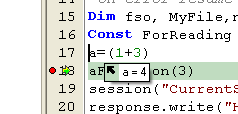
- To evaluate an expression simply select is
and move your mouse over the selection:

- In order to add a watch, simply select an
expression, right click and select Add Watch:
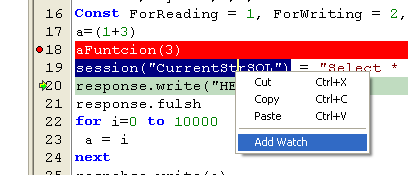
The watch value will be available only after you step.
Note: Expressions added in the watch require the debugger to reevaluate them on every step, which usually slows down a bit every step. That's why most of the clients, including myself, prefer evaluating the variables on the fly through a hint.
SplineTech JavaScript Debugger FAQ
Please use the FAQ corresponding to the product in question, don't use the JavaScript Debugger FAQ for ASP Debugger issues, for example.